Documentation
Complete guide to using every feature in GrantFlow Modern — from first login to advanced AI automation.
Sections
Getting Started — Login
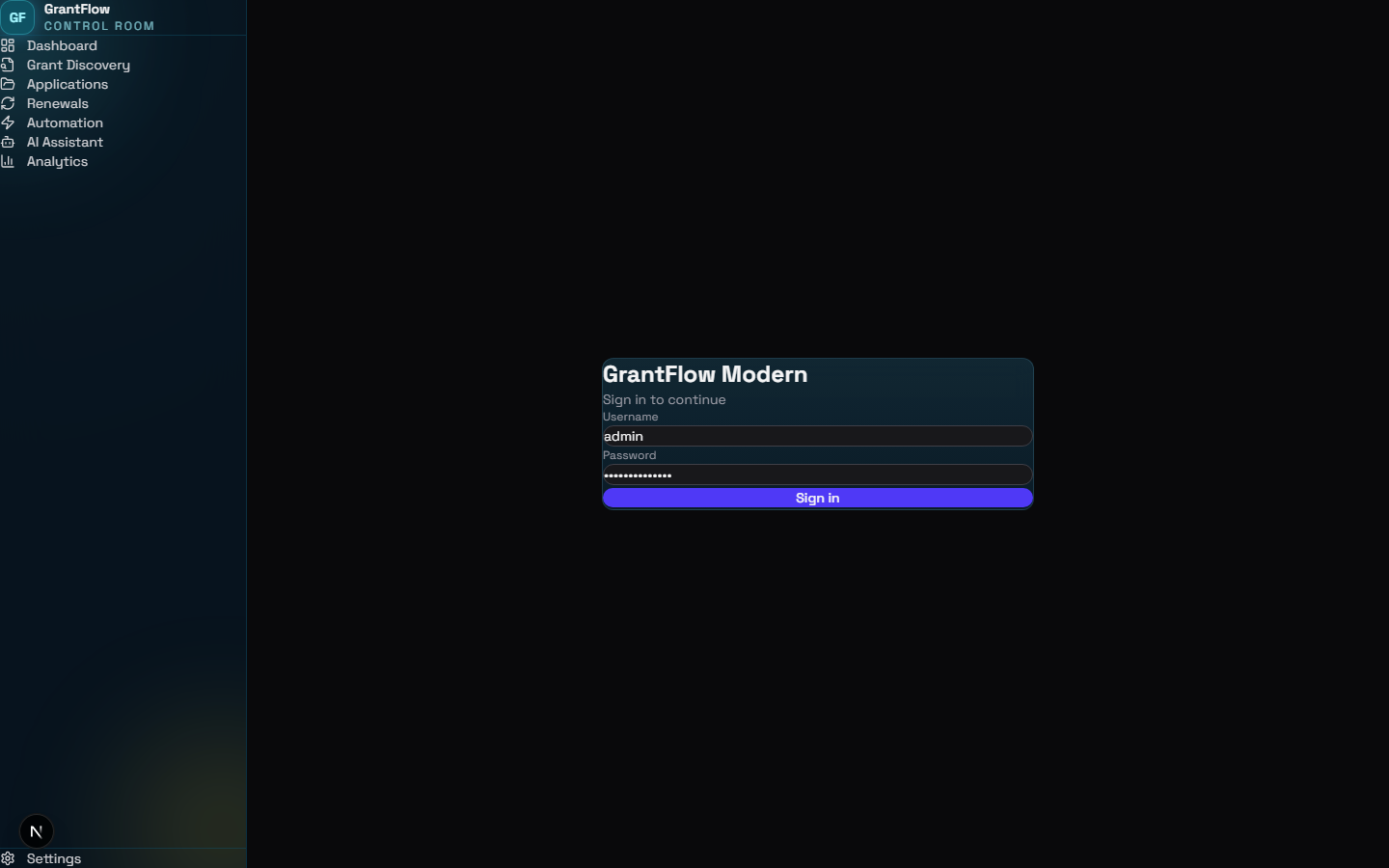
GrantFlow Modern is a secured platform. Access requires valid credentials before any data or features become available.
- Navigate to
/gfm-app/login— you will be redirected here automatically if not authenticated. - Enter your Username and Password in the provided fields.
- Click Sign in. A JWT token is securely stored in your browser and used for all subsequent API calls.
- On success you are redirected to the Mission Control Dashboard automatically.
Tip
If you are redirected to the login page unexpectedly, your session may have expired. Simply sign in again — all your data is persisted on the server.
Mission Control Dashboard
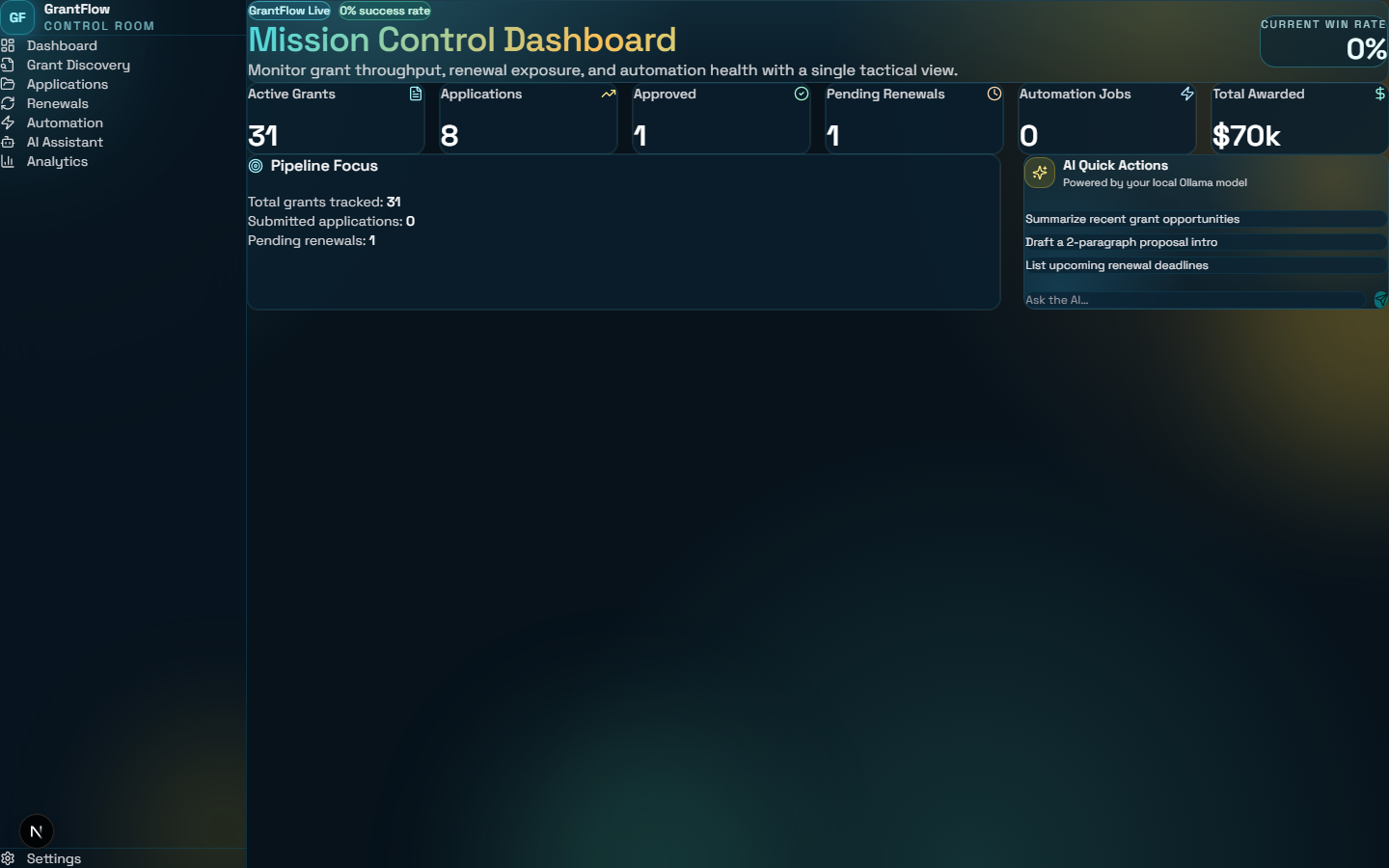
The Dashboard is your command center — it provides a real-time snapshot of your entire grant portfolio in a single view.
Stat Cards
- Active Grants — total number of grant opportunities tracked in the system.
- Applications — all applications across every pipeline stage.
- Approved — applications that have been approved and are funding your organization.
- Pending Renewals — applications approaching their renewal deadline.
- Automation Jobs — AI-powered background tasks currently queued or running.
- Total Awarded — cumulative funding secured across all approved applications.
Pipeline Focus & AI Quick Actions
- The Pipeline Focus panel shows totals for grants tracked, submitted applications, and pending renewals at a glance.
- The AI Quick Actions panel on the right lets you ask the local AI model anything — use the quick-prompts or type a custom question in the chat input.
- The dashboard auto-refreshes every 30 seconds so stats always reflect live data without manual reloads.
The Current Win Rate badge in the top-right corner shows your approval percentage across all submitted applications.
Grant Discovery Engine
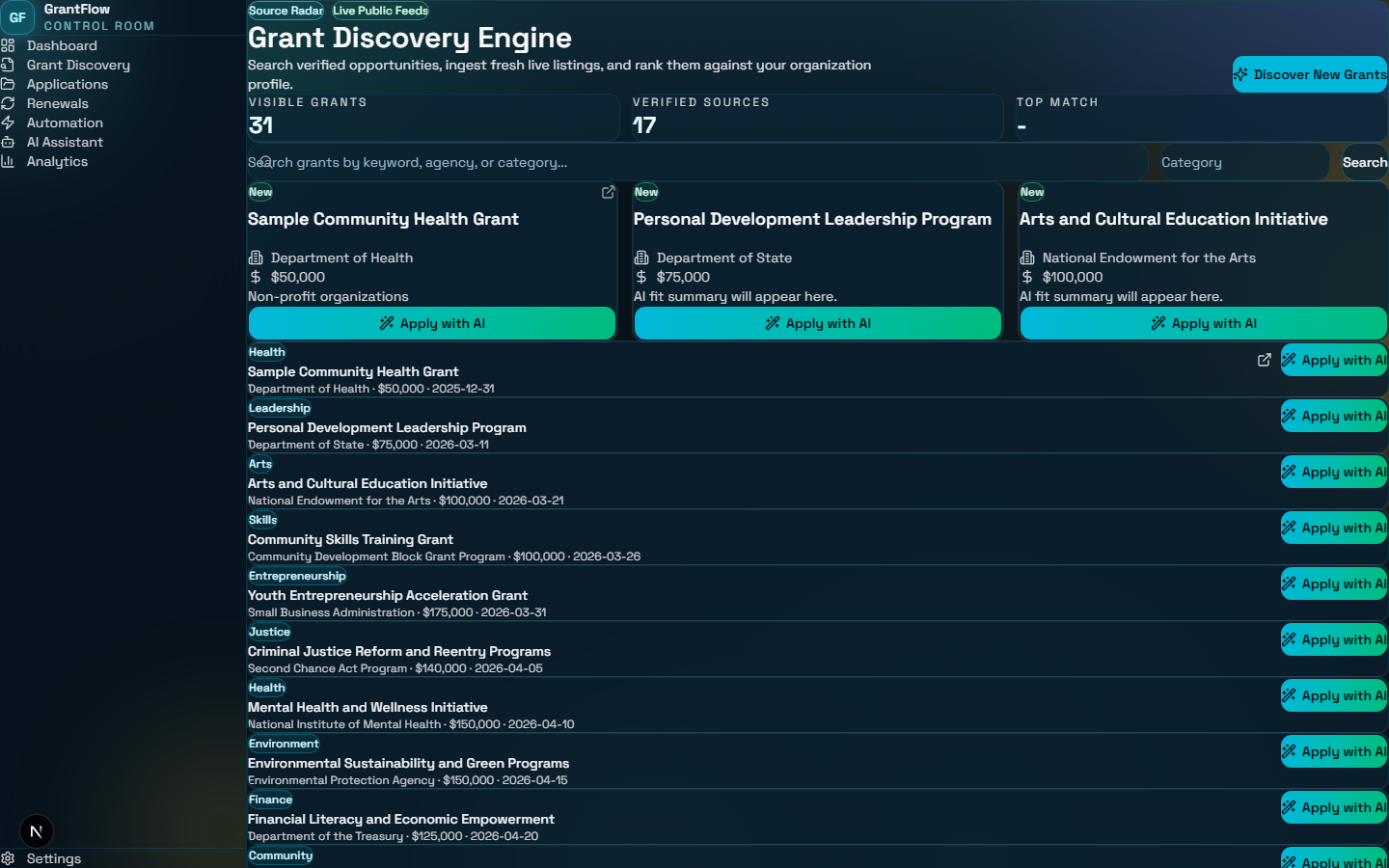
The Grant Discovery Engine is where you find and track funding opportunities. It combines a manually-curated library with AI-powered live-feed ingestion.
Finding Grants
- Use the Search bar to filter by keyword, agency name, or grant category.
- Use the Category dropdown to narrow results to a specific funding domain (Health, Arts, Finance, etc.).
- Each grant card shows the agency, funding amount, deadline, and an AI match score (0–100) ranking how well it fits your organization profile.
Discovering New Grants
- Click Discover New Grants (top-right) to trigger the AI grant discovery pipeline — it pulls fresh listings from live public feeds and scores them against your profile.
- New grants appear in the list immediately after ingestion, tagged with a New badge.
Applying to a Grant
- Click Apply with AI on any grant card to automatically create a draft application and populate it using the AI writing engine.
- The new application will appear in the Applications kanban in Draft status.
Applications Pipeline
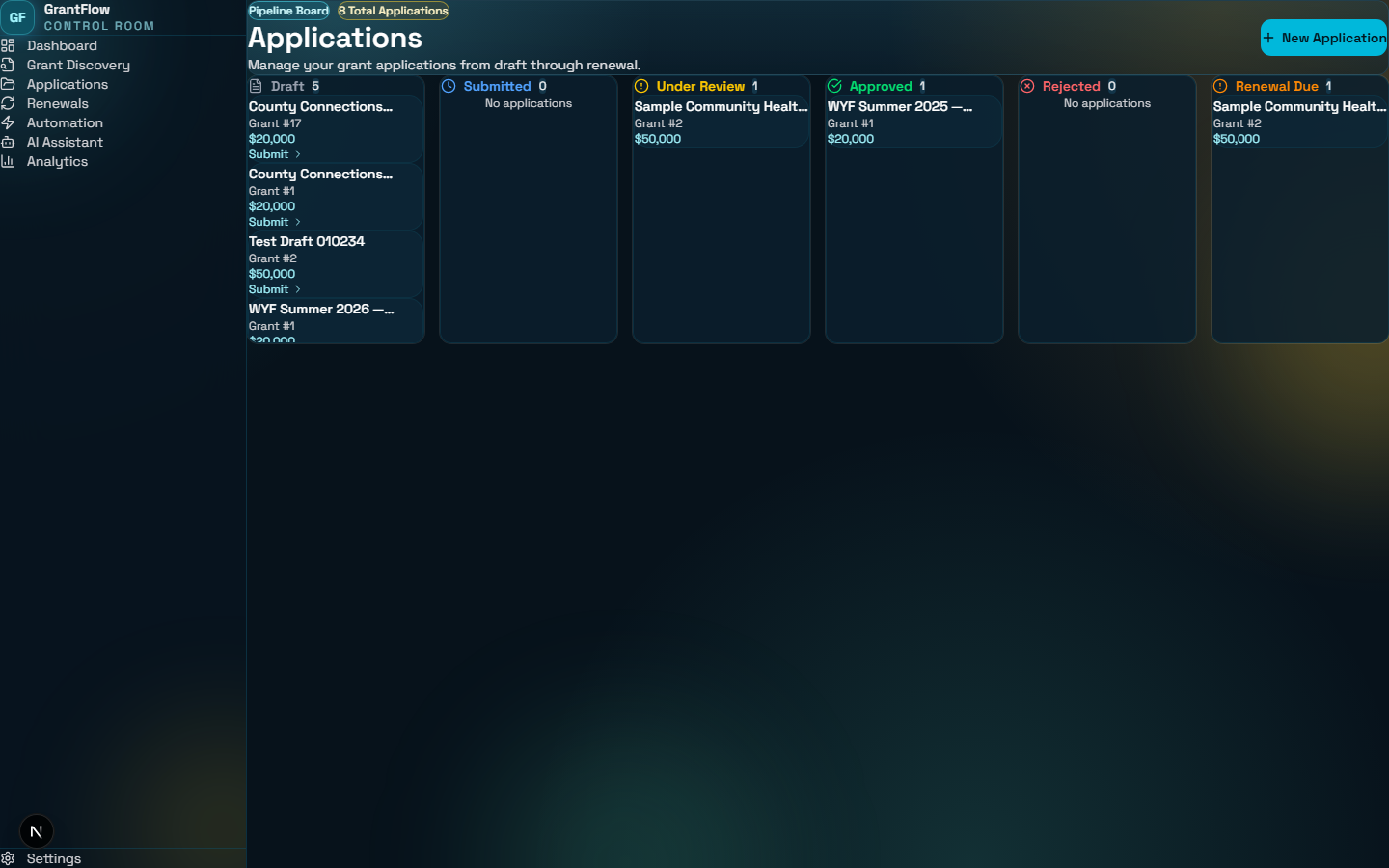
The Applications page uses a Kanban-style pipeline to track every application from initial draft through final decision and renewal.
Pipeline Stages
Draft
Application created but not yet submitted.
Submitted
Sent to the funding agency for review.
In Review
Under evaluation by the granting body.
Approved
Grant awarded — funding secured.
Rejected
Application was not selected this cycle.
Renewal Due
Approved grant approaching renewal window.
Creating an Application
- Click New Application to open the form — select a grant from the dropdown, add a title and requested amount, then submit.
- Move cards between columns to update their status. The change is saved to the server immediately.
Renewals Tracker
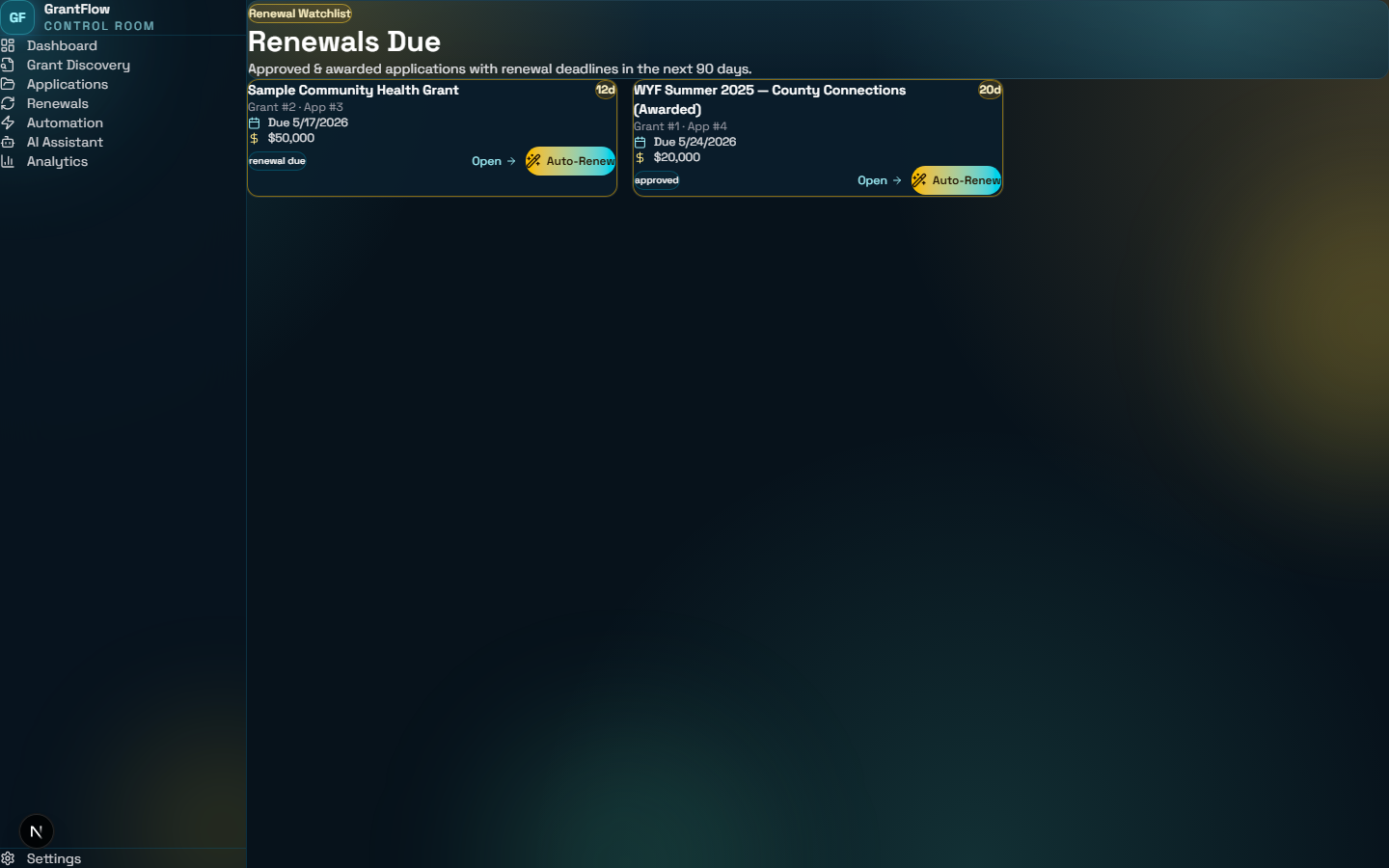
The Renewals page surfaces all applications that have a renewal deadline, sorted by urgency so you never miss a critical window.
Urgency Rings
- Rose / Red — deadline is within 7 days. Immediate action required.
- Amber / Yellow — deadline is within 30 days. Plan your renewal submission soon.
- Cyan / Blue — deadline is more than 30 days away. No immediate action needed.
Auto-Renew
- Click Auto-Renew on any card to trigger the AI renewal pipeline — it drafts a renewal submission using your organization profile and historical grant data.
- The renewal job is queued as an Automation Job and tracked on the Automation page.
Automation Center
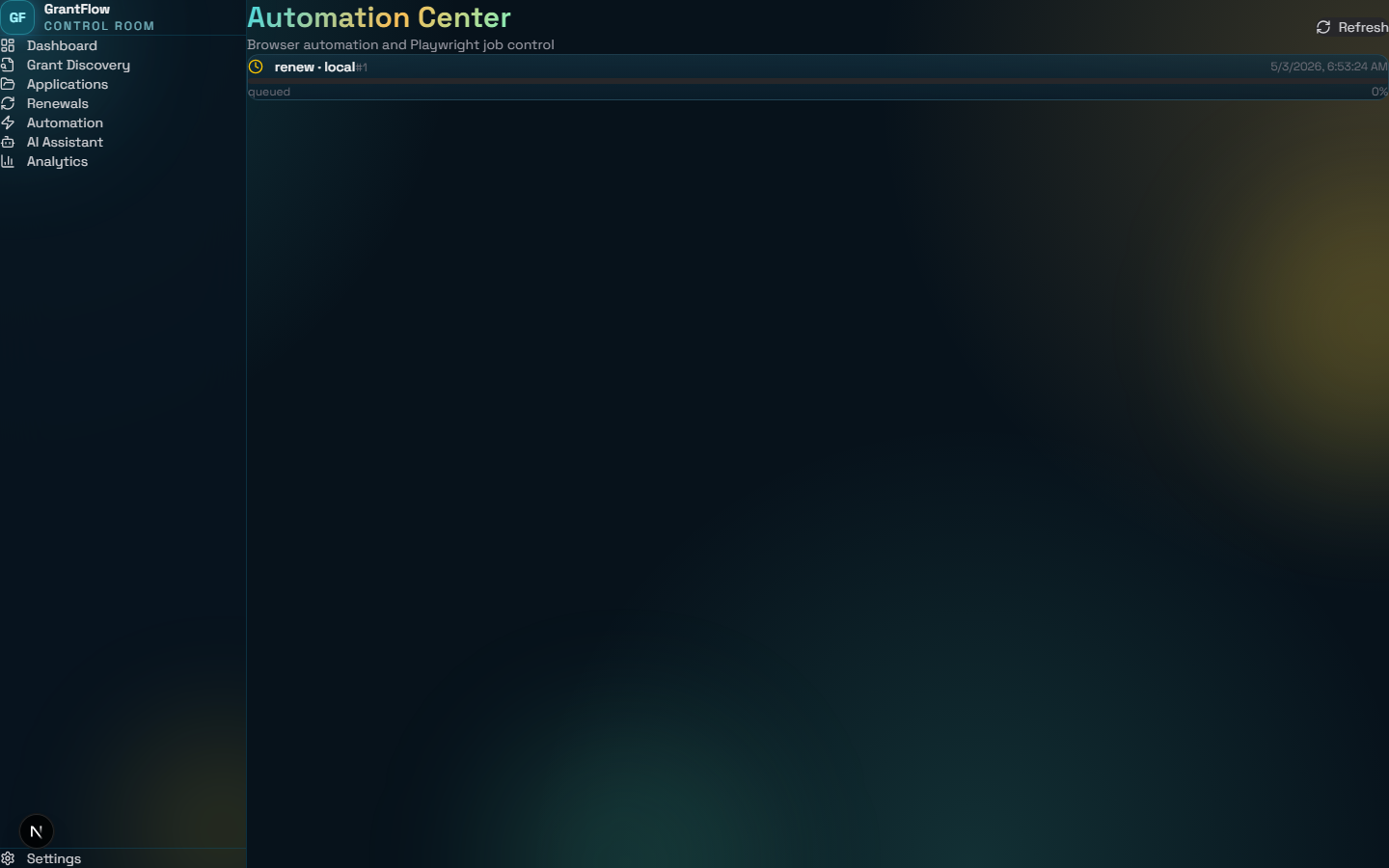
The Automation Center lists all AI-powered background jobs running on your behalf — from grant discovery to application drafting and renewals.
Job Statuses
Queued
Job is waiting to start.
Running
Job is actively executing.
Completed
Job finished successfully.
Failed
Job encountered an error.
- Each running job shows a progress bar and a current step description so you know exactly what the AI is doing.
- The page auto-refreshes every 5 seconds while jobs are active — no need to manually reload.
- Jobs are created automatically when you click Apply with AI, Discover New Grants, or Auto-Renew.
AI Assistant
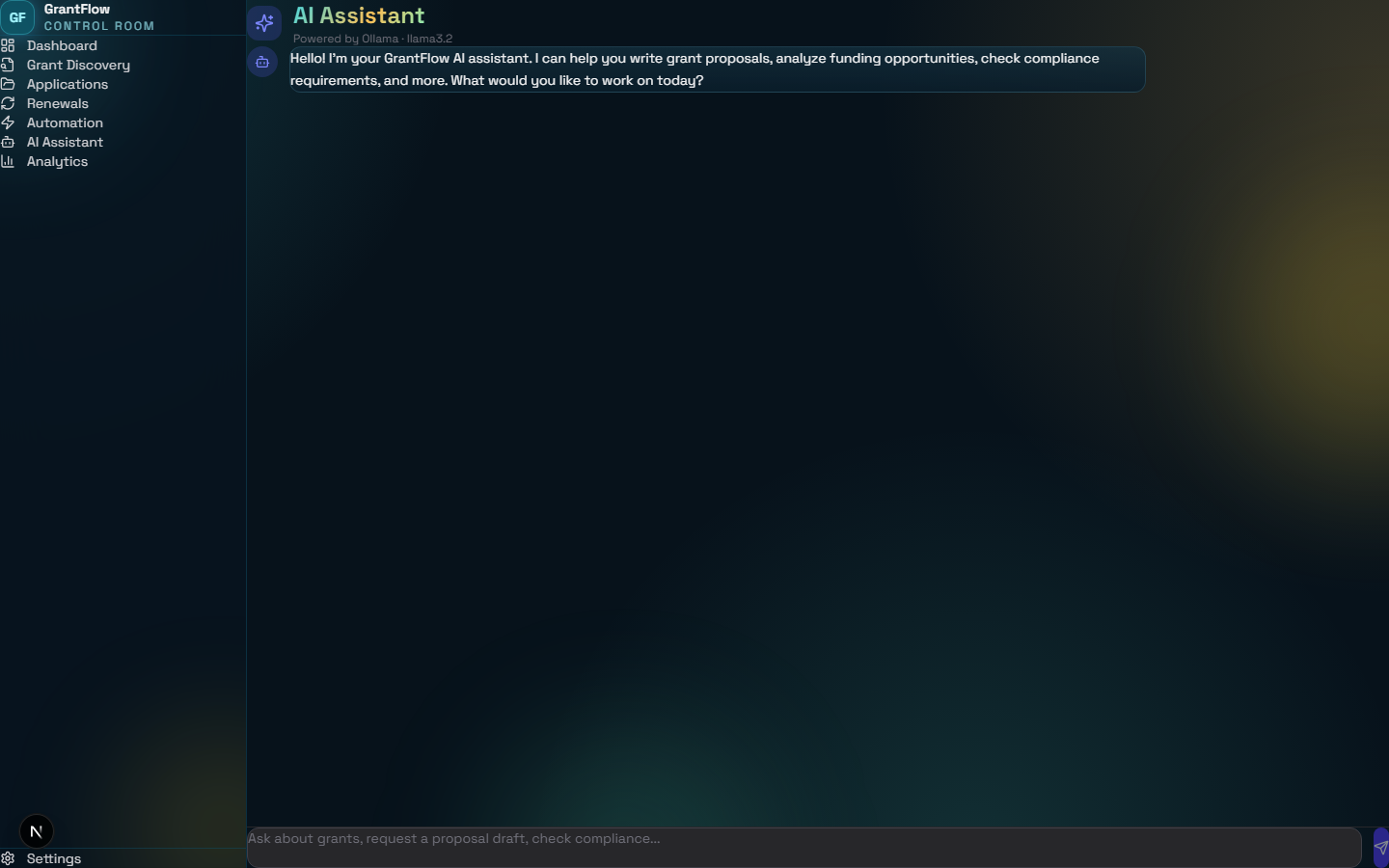
The AI Assistant gives you a direct conversational interface to the local Ollama language model powering GrantFlow Modern.
- Type any grant-related question into the chat input at the bottom — press Enter or click Send.
- The AI has context about your organization profile and can help draft narrative text, suggest eligibility improvements, interpret grant requirements, and more.
- Chat history is maintained for the duration of your session — scroll up to review earlier responses.
- The same AI engine powers the Quick Actions panel on the Dashboard and the Apply with AI automation pipeline.
Suggested Questions
- What grants best fit our mission statement?
- Summarize the pending renewal deadlines.
- Draft a 2-paragraph proposal intro for a health grant.
- How can we improve our approval rate?
Analytics
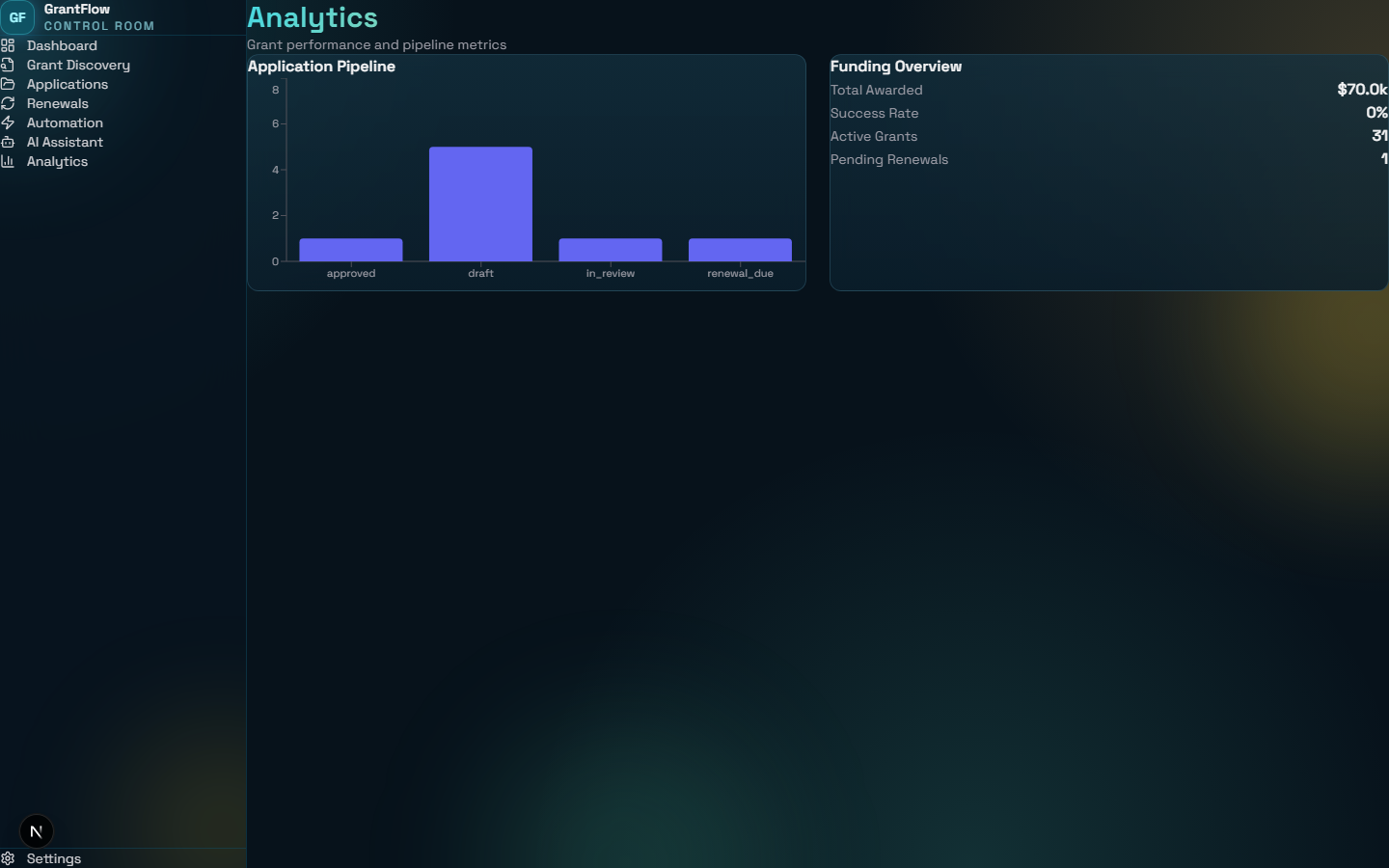
The Analytics page visualizes the health and performance of your grant portfolio with interactive charts and funding summaries.
Application Pipeline Chart
- A Bar Chart breaks down your applications by pipeline status — approved, draft, in_review, renewal_due, etc. — so you can see where bottlenecks occur.
Funding Overview Panel
- Total Awarded — cumulative amount secured across all approved grants.
- Success Rate — percentage of submitted applications that were approved.
- Active Grants and Pending Renewals summary counts.
Use these metrics regularly to identify which grant categories yield the best approval rates and adjust your discovery strategy accordingly.
Settings — Organization Profile
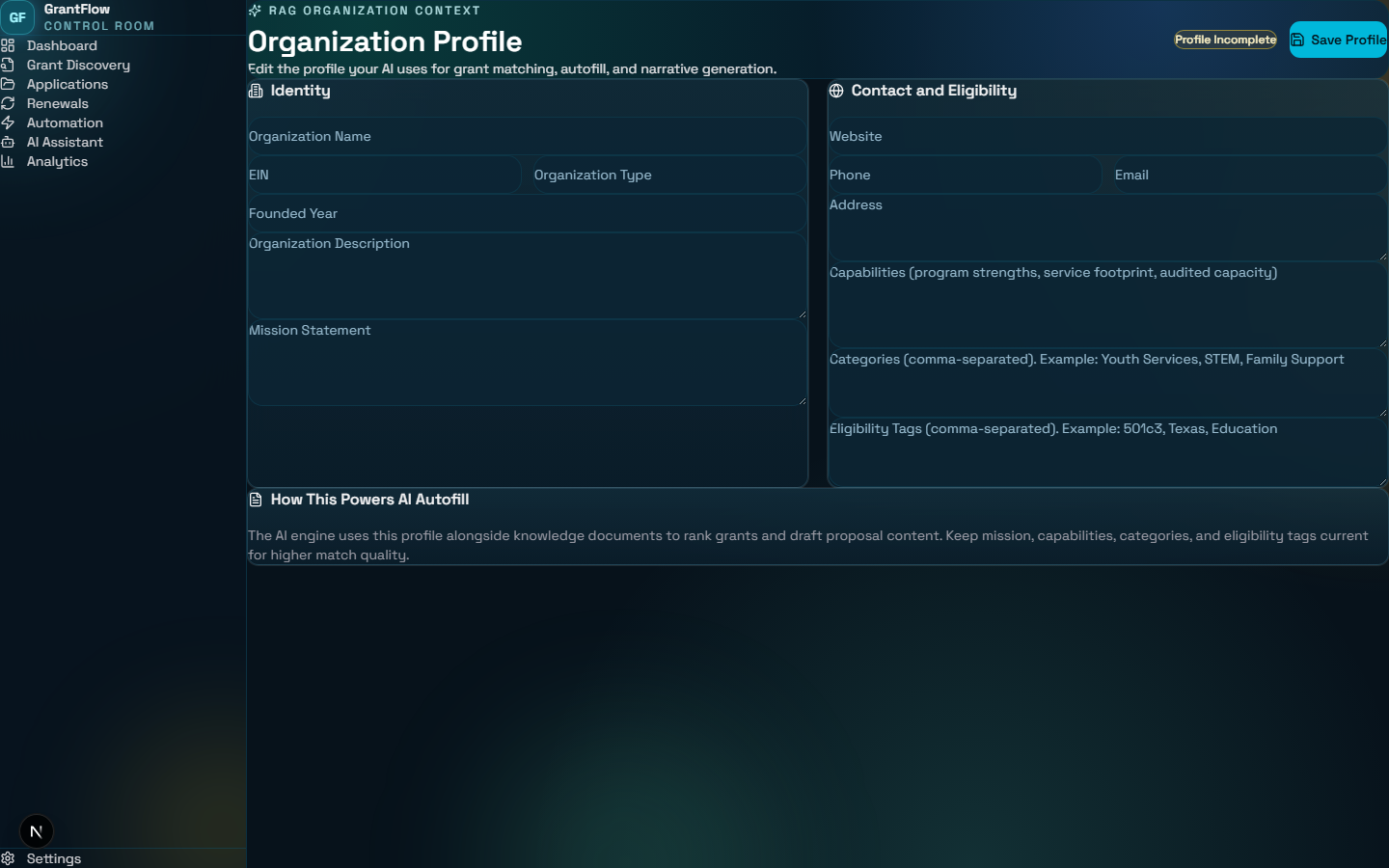
The Settings page is where you define your organization identity. This profile is used by the AI engine to score grant matches, draft proposals, and generate renewal content.
Profile Fields
AI Profile Generation
- Click Generate with AI to have the local model draft your mission, description, and capabilities based on your organization name and type.
- Always review and refine AI-generated content before saving — the more accurate your profile, the better the grant match scores.
Best Practice
Keep your Categories and Eligibility Tags up to date. These are the primary signals the discovery engine uses to surface relevant grants and calculate AI match scores.